Commerce: orders & payments from conversations
Selling on WhatsApp usually means the order lives in someone's head and the M-Pesa code lives in a different chat. Commerce puts both in one place: every order taken in a conversation, every payment message that arrived, and a way to tie the two together so you know what has actually been paid for.
Orders
Open Commerce from the left sidebar. The Orders tab lists everything recorded from a conversation, newest first.
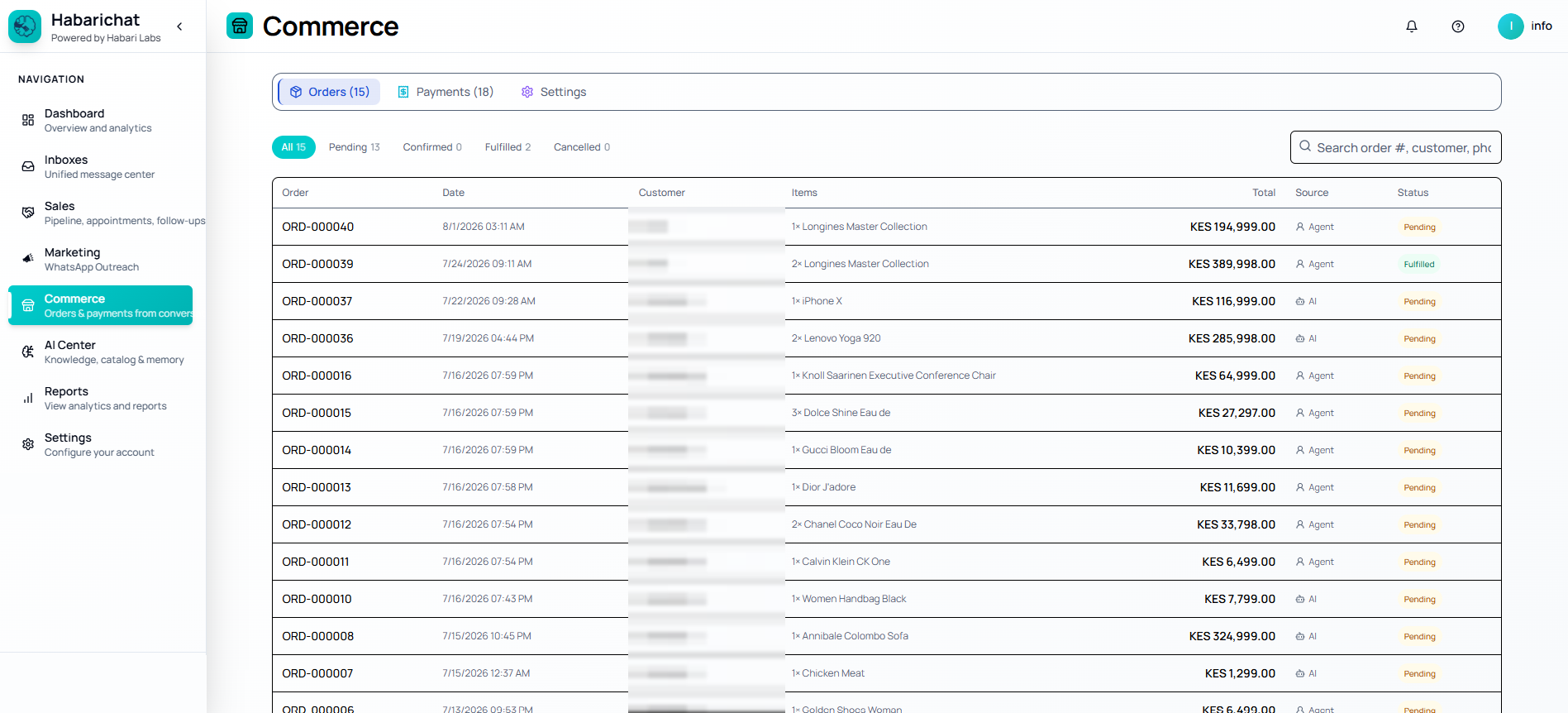
Each row carries the order number, the date, the customer, the items and quantity, the total, and two things worth understanding:
- Source tells you who took the order. AI means the assistant recorded it during an automated conversation. Agent means someone on your team recorded it while replying.
- Status moves through Pending, Confirmed, Fulfilled, and Cancelled. The filters along the top show a live count for each, so a growing Pending number is your to-do list.
Payments and M-Pesa codes
The Payments tab collects the payment confirmations that arrive in your inboxes and helps you match each one to an order. This is the part that normally eats an afternoon.
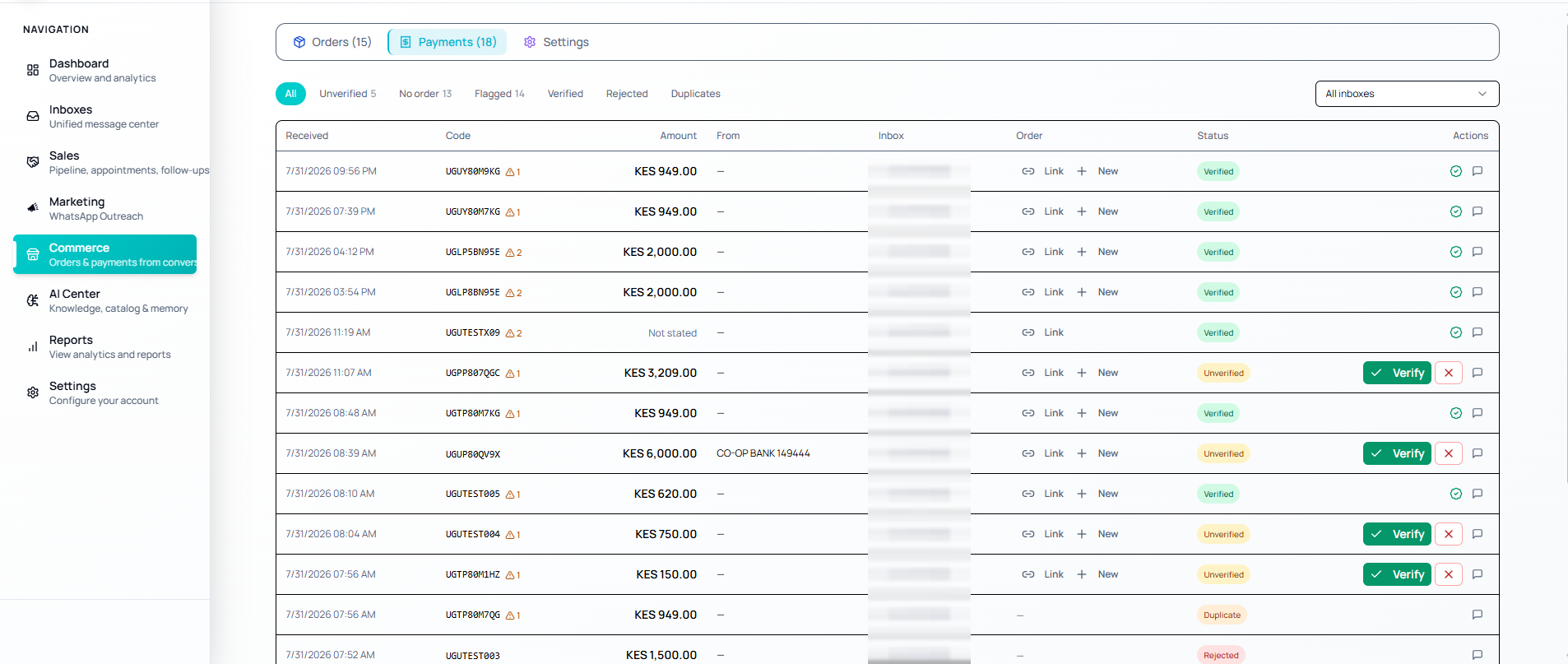
Work through it with the filters at the top:
| Filter | What is in it |
|---|---|
| Unverified | Payments read but not yet confirmed by a person. Check the code and amount, then click Verify. |
| No order | Money arrived but it is not tied to anything. Use Link to attach it to an existing order, or New to create one. |
| Flagged | Something needs a human eye, such as an amount that does not match. |
| Verified | Confirmed and matched. Nothing left to do. |
| Rejected | Dismissed as not a real payment for you. |
| Duplicates | The same code seen more than once, so you do not credit it twice. |
Each row shows when it was received, the transaction code, the amount, who it came from where that is available, and which inbox it landed in. If you run more than one number, the All inboxes dropdown narrows the list to one of them.
Order notifications
Open the Settings tab inside Commerce to choose how your team hears about a new order, and what the customer hears back.
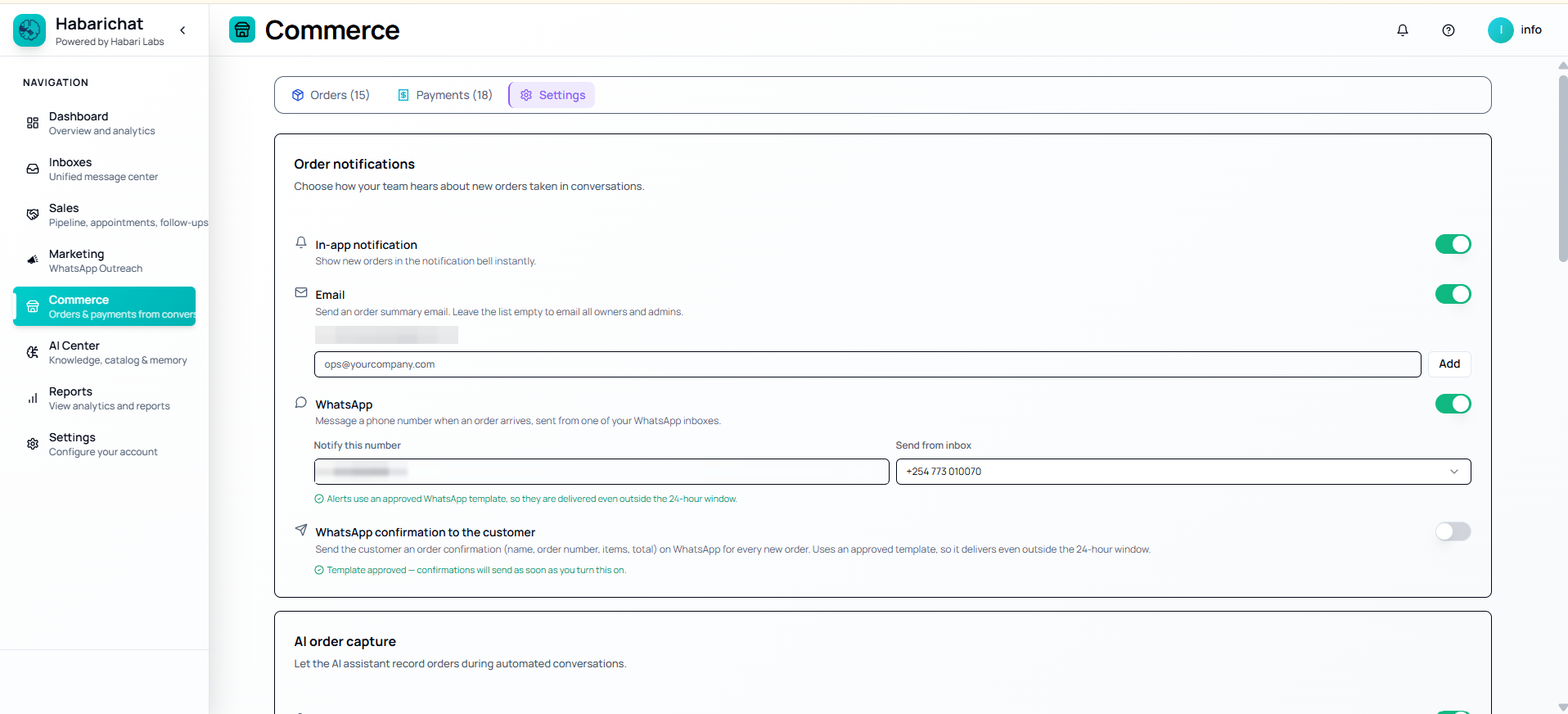
- In-app notification puts new orders in the notification bell instantly.
- Email sends an order summary. Add specific addresses, or leave the list empty to email every owner and admin.
- WhatsApp messages a number of your choosing when an order arrives, sent from whichever of your WhatsApp inboxes you pick. Because it uses an approved template, the alert still reaches you outside the 24-hour window.
- WhatsApp confirmation to the customer sends the buyer their name, order number, items, and total for every new order. Also template-based, so it delivers at any time.
Below these, AI order capture controls whether the assistant is allowed to record orders during automated conversations at all. Leave it on if you want the AI closing sales while nobody is watching, and see AI modes if you would rather approve everything first.
Customer automations
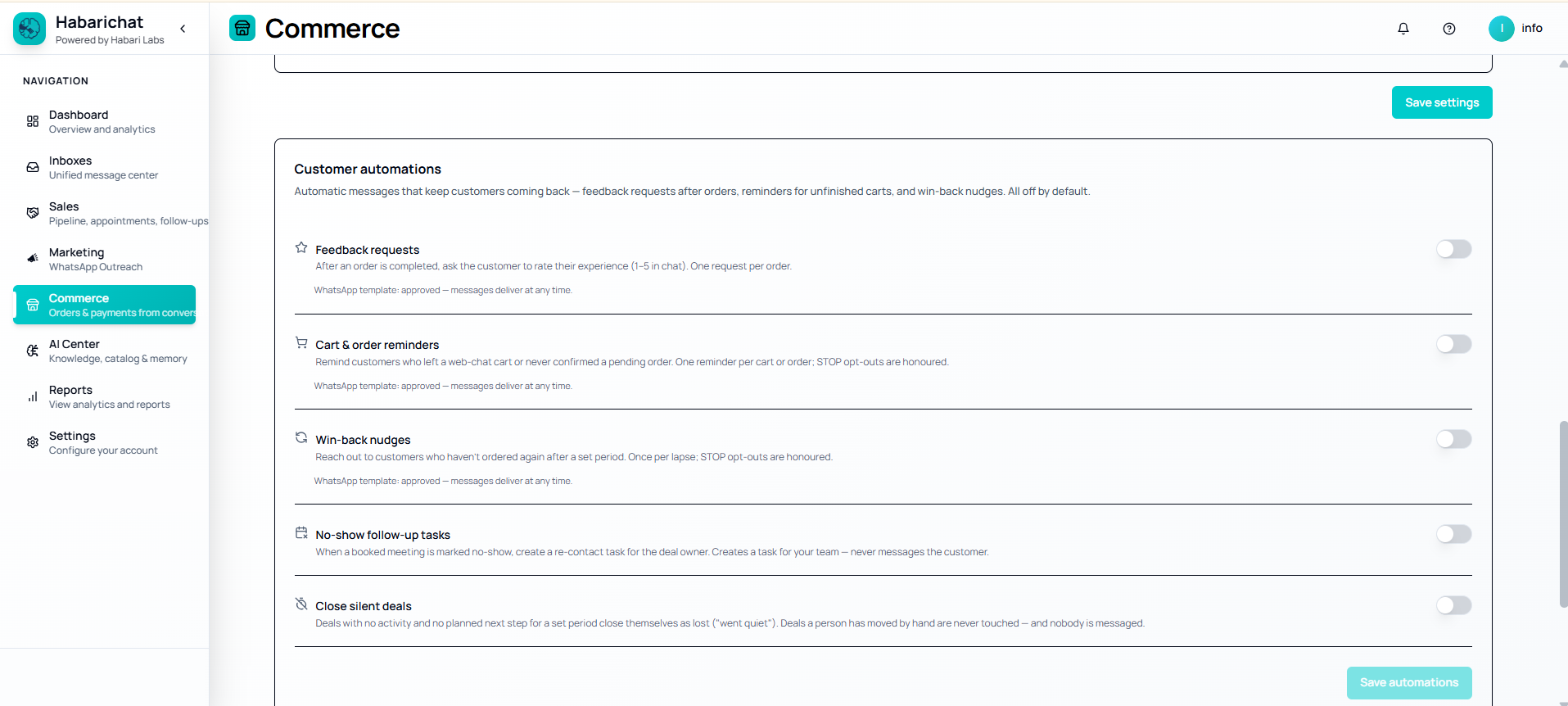
These are the follow-ups that bring people back, the ones no busy team ever gets round to sending by hand. All of them are off by default, so nothing goes out until you decide it should.
| Automation | What it does | Its limit |
|---|---|---|
| Feedback requests | After an order is completed, asks the customer to rate the experience 1 to 5 in chat. | One request per order. |
| Cart & order reminders | Reminds customers who left a web chat cart or never confirmed a pending order. | One reminder per cart or order. STOP opt-outs honoured. |
| Win-back nudges | Reaches out to customers who have not ordered again after a set period. | Once per lapse. STOP opt-outs honoured. |
| No-show follow-up tasks | When a booked meeting is marked no-show, creates a re-contact task for the deal owner. | Creates a task only. Never messages the customer. |
| Close silent deals | Closes deals as lost when they have had no activity and no planned next step for a set period. | Deals a person has moved by hand are never touched, and nobody is messaged. |
Common questions
Orders are created from conversations, not typed into a separate system. The Source column tells you who recorded each one: AI means the assistant captured it during an automated chat, and Agent means a person on your team recorded it while replying. Every order keeps its order number, date, customer, items and total.
Unverified means HabariChat has read the payment message but nobody has confirmed it yet. Open the Payments tab, check the code and amount against the order, then click Verify. Payments can also show as Flagged, Duplicate or Rejected, and the filters along the top let you work through each group in turn.
Yes. In Commerce → Settings, turn on WhatsApp confirmation to the customer. It sends the customer their name, order number, items and total for every new order. Because it uses an approved WhatsApp template, it delivers even outside the 24-hour service window.
No. Every customer automation is off by default and you switch on only the ones you want. STOP opt-outs are honoured, feedback requests are limited to one per order, reminders to one per cart or order, and win-back nudges to once per lapse. Two of them, no-show follow-up tasks and close silent deals, only create tasks or update deals and never message the customer at all.