Set up HabariChat yourself
One guide, start to finish. By the end of it your own WhatsApp number answers customers on its own, day and night, while it still rings on the phone in your pocket. You will not need a developer, a new SIM card, or a call with us to get there.
Open an account
Two minutes with a Google account, no card required.
Link your number
Scan one QR code. The phone app keeps working.
Market & sell
Send campaigns and let the AI sell from your catalog.
Get these ready first
Nothing here costs money and nothing takes long to find, but hunting for them halfway through is what turns a half-hour job into an afternoon. Collect them now.
- A computer with a browser, and your phone next to it. You will scan a QR code from one screen with the other.
- The phone that holds your business number, with the WhatsApp Business app installed and updated. Personal WhatsApp will not link.
- A Facebook login that is an admin of your business. Meta asks for it during the WhatsApp step. If a colleague runs your Facebook Page, get them on a call for those five minutes.
- One document about your business, such as a price list, a service list, or the questions customers keep asking. A PDF, Word file, Excel sheet, or even a clear photo of a printed price list all work.
- Product photos and prices, only if you sell physical items and want the catalog.
Step 1: Create your account
Search Google for HabariChat and open habarichat.ai, or type the address straight into your browser. Both land you in the same place. Click Get Started in the top right.
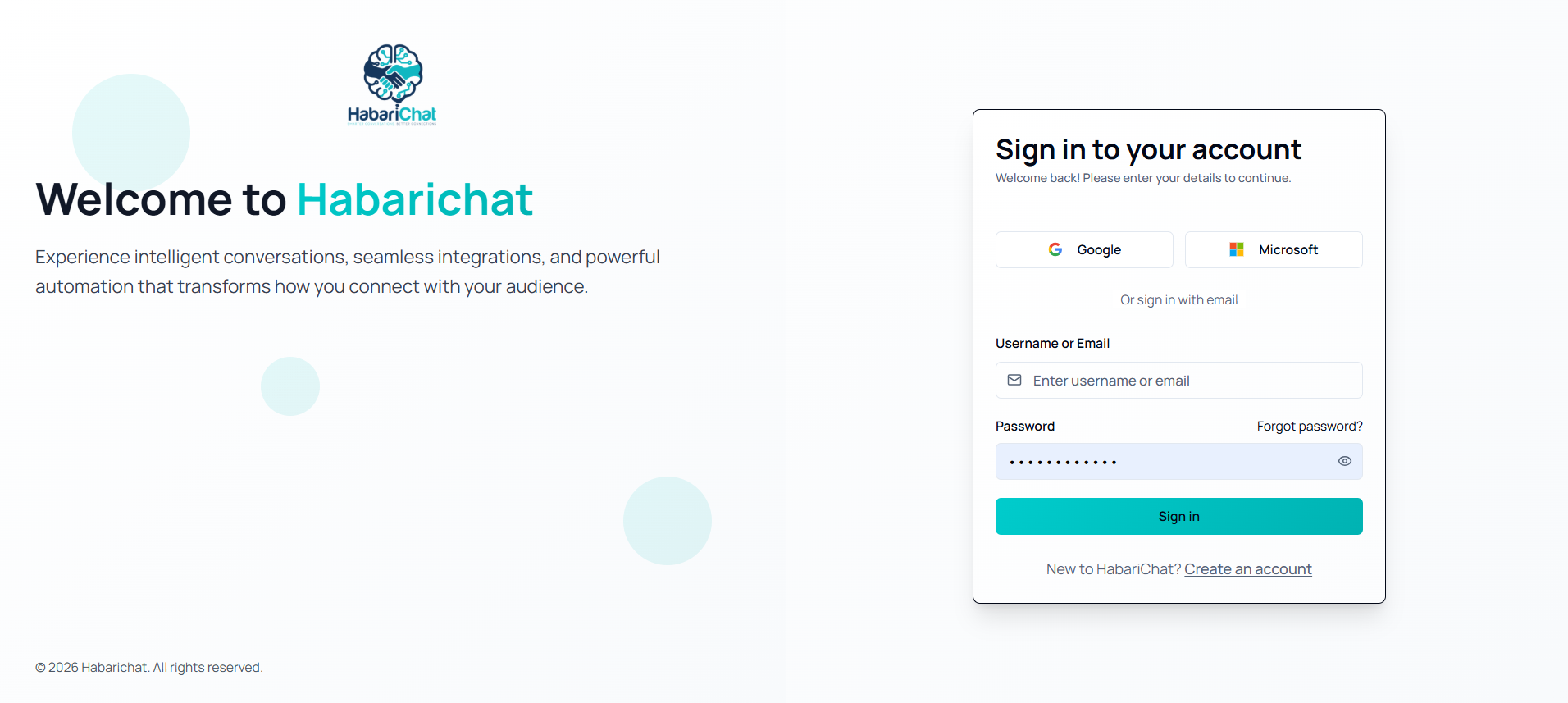
The fast way, with Google
- Click Continue with Google.
- Pick the Google account you use for the business, not a personal one you might lose access to.
- Approve the sign-in and you land straight in HabariChat. There is no password to invent and no verification email to wait for.
The email way
- Enter your username, business email, and a strong password.
- Accept the Terms of Service and Privacy Policy, then click Create Account.
- Open your inbox and click the verification link. Your account stays locked until you do. If it has not arrived in two minutes, check spam and promotions.
Step 2: Connect WhatsApp and keep it on your phone
This is the step people worry about, so here is the short version: you keep your number and you keep your app. The option is called Coexistence. It links the number you already advertise to the WhatsApp API while that same number stays live in the WhatsApp Business app on your phone.
In practice that means your shop attendant carries on replying from the handset exactly as they do today, the AI answers everything that arrives while nobody is watching, and both sides read the same conversation. Nothing gets reprinted and no customer has to learn a new number.
- The number already active in the WhatsApp Business app, not personal WhatsApp.
- The app updated to a recent version. An old version hides the option you need.
- A Facebook login that is an admin of your business.
- The phone online and unlocked throughout, because you approve the link on it.
Open the channel list
In HabariChat, click Settings in the left sidebar, open the Channels tab, then click Connect Channel on the right.
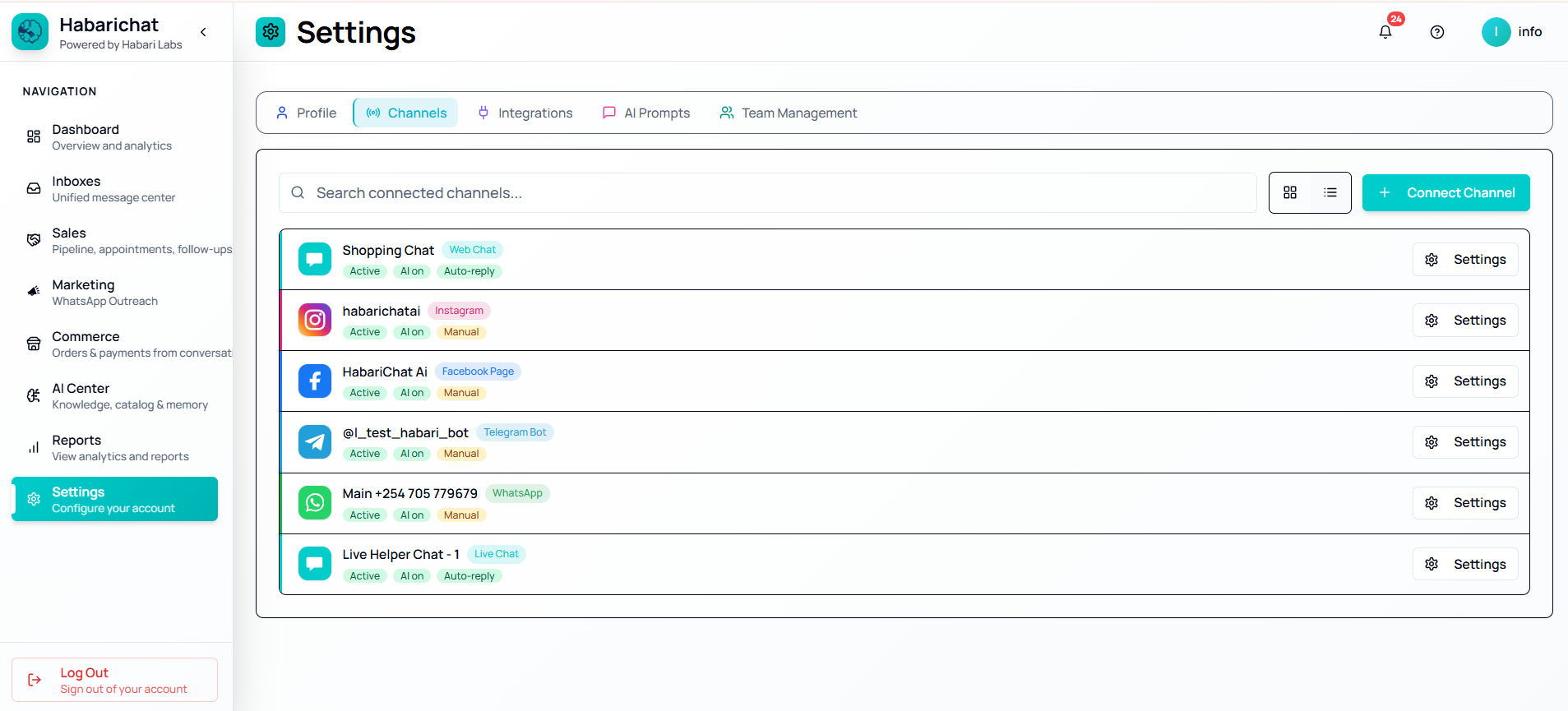
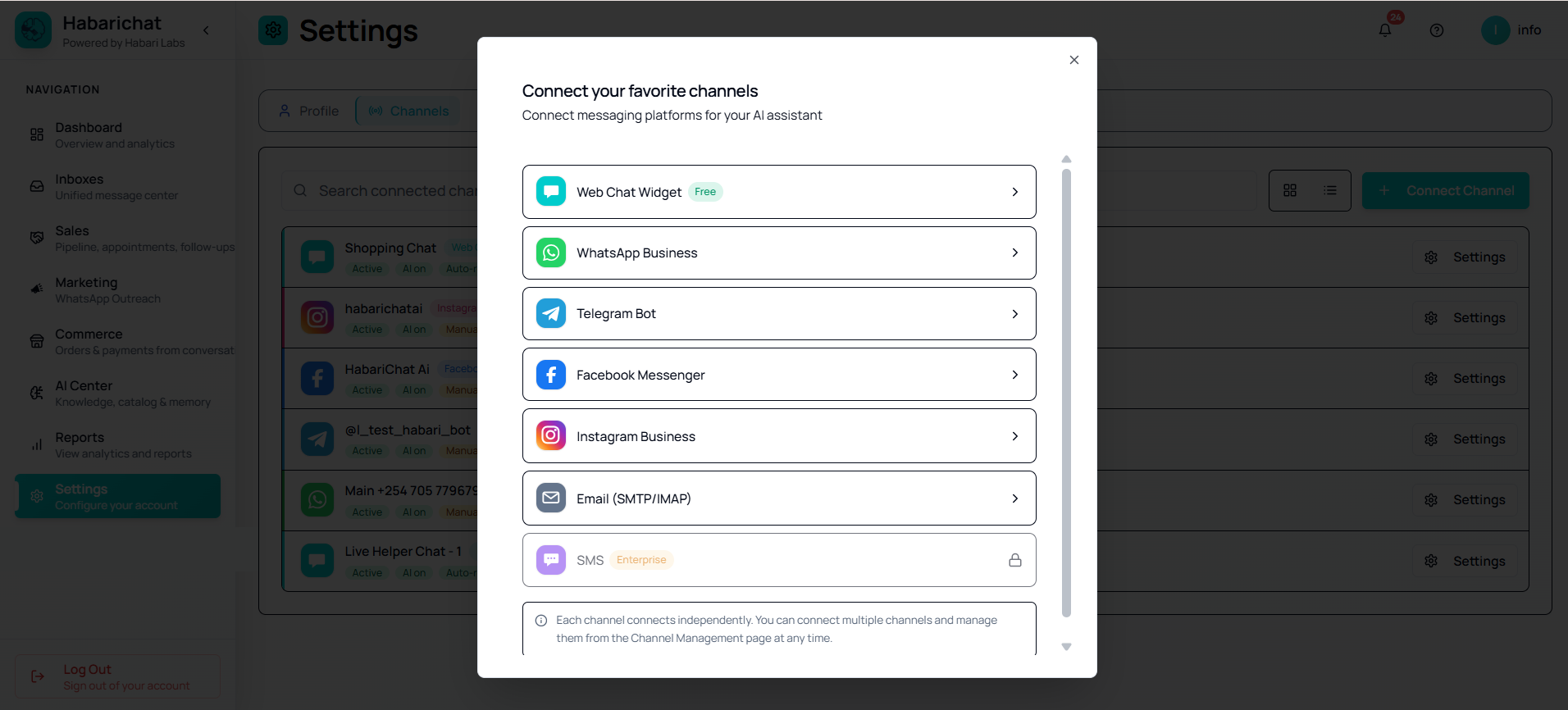
Pick WhatsApp Business
A panel opens listing every channel you can connect. Choose WhatsApp Business.
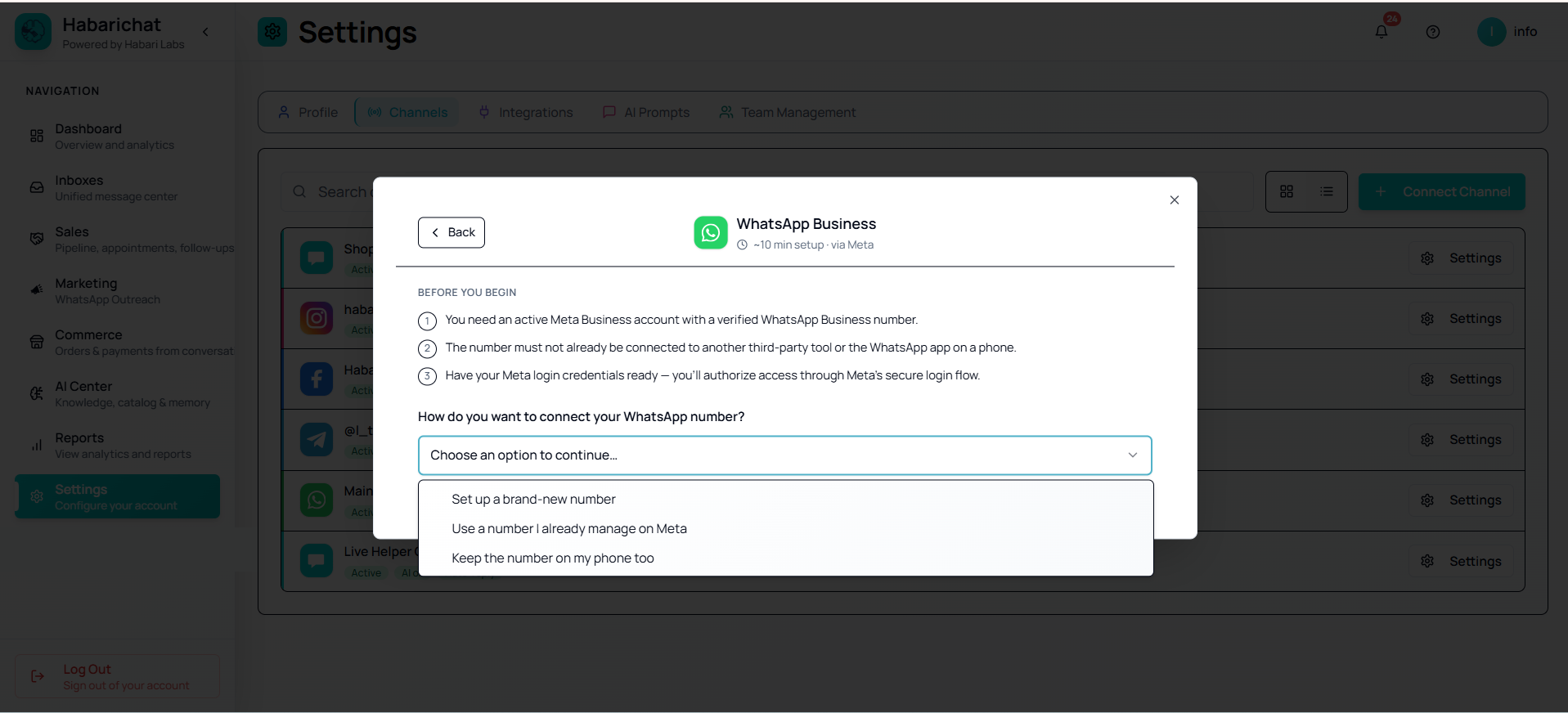
Choose the Coexistence option
Read the short Before you begin list, then open the dropdown under How do you want to connect your WhatsApp number? and pick the third option, Keep the number on my phone too.
Authorise with Meta
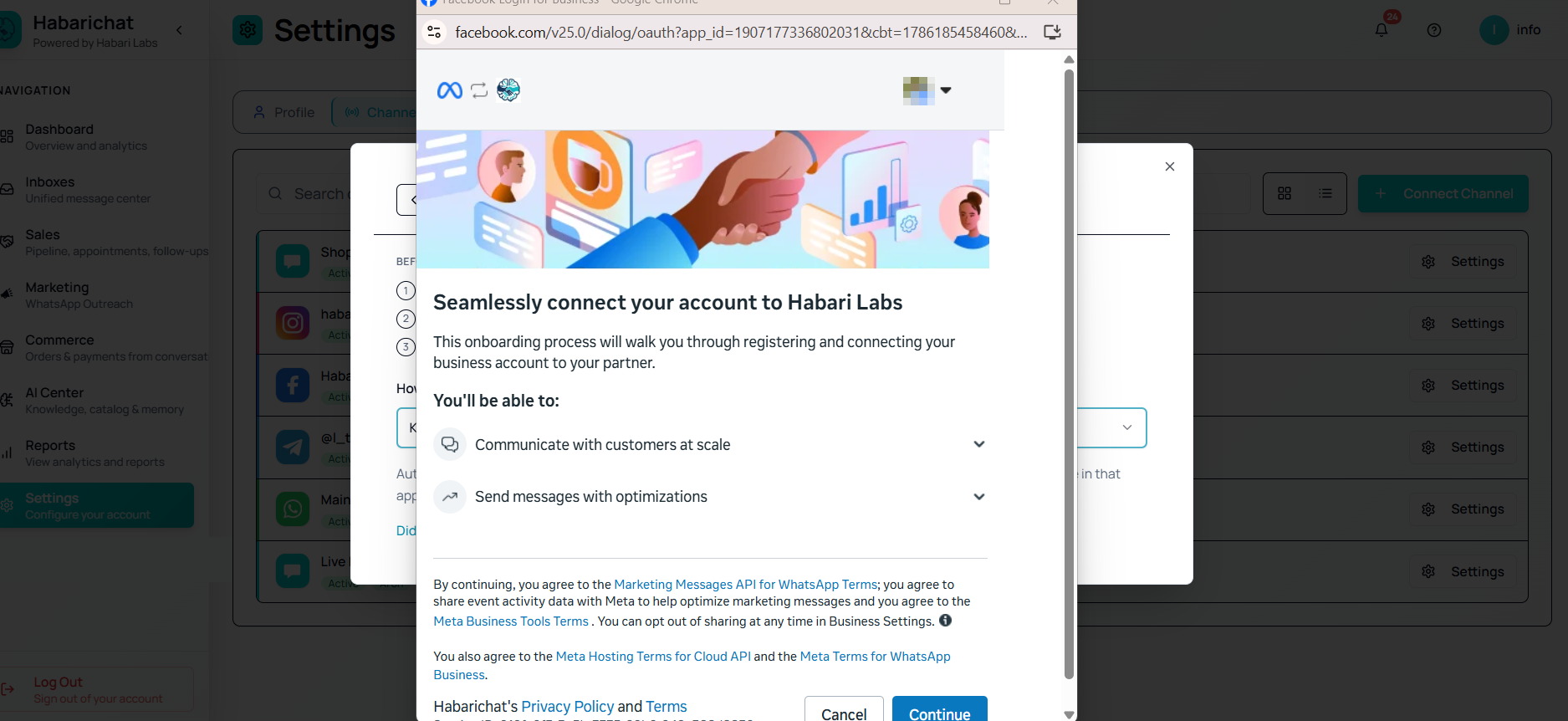
A secure Meta window opens. Sign in with Facebook, confirm your business details, and click Continue through Meta's prompts.
Scan the QR code
- A QR code appears on your computer screen.
- On the phone, open the WhatsApp Business app and go to Settings → Linked devices → Link a device.
- Scan the QR code from your screen and approve it on the phone.
- Wait for Meta to confirm, then close the window. You come back to HabariChat with the number connected and listed under Settings → Channels.
Your recent chats from the app sync across, so the inbox is not blank when you open it. From here on, new messages appear in both places.
When it does not work first time
| What you see | What to do |
|---|---|
| Nothing happens when you click Connect | Your browser blocked the popup. Allow popups for habarichat.ai, then click again. |
| No "Link a device" option on the phone | The app is out of date. Update WhatsApp Business from the Play Store or App Store and reopen Settings. |
| The QR code refuses to scan | Check you are scanning from the WhatsApp Business app rather than personal WhatsApp. They look alike and this catches most people out. |
| Connected, but no messages arrive | Keep the phone online, send a fresh test message, and refresh the Inboxes page. |
| Meta rejects the business | Some industries are restricted by Meta rather than by us. See prohibited and regulated industries. |
Full detail on this step, including how it behaves over time, lives in Keep the number on your phone (Coexistence). If your number is not on a phone at all, or you would rather start clean, compare all three routes in Connect WhatsApp.
Step 3: Teach the AI your business
A connected number with an untrained AI is a polite assistant who knows nothing about you. This step is what makes it useful, and it is the one step where the effort you put in shows up directly in the answers customers get.
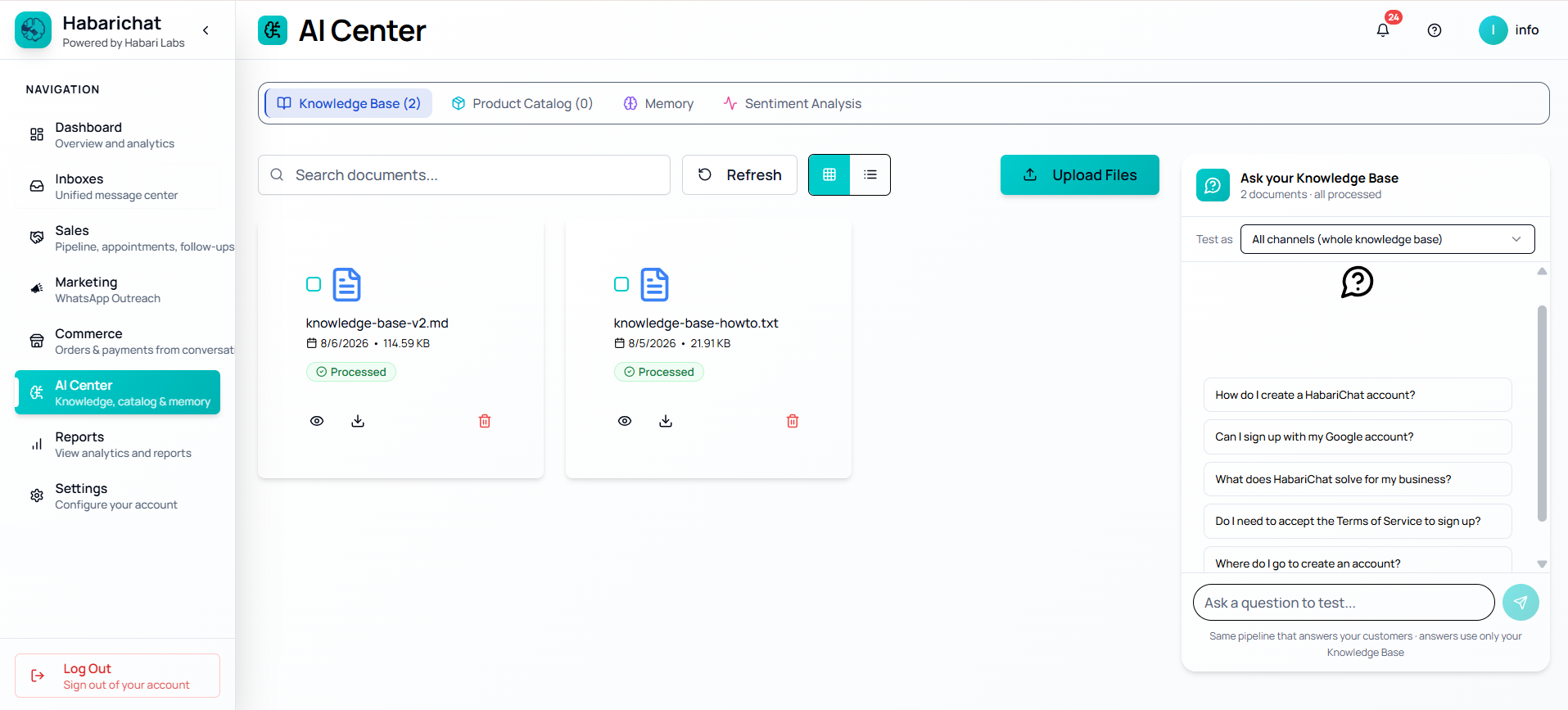
- Open AI Center from the left sidebar and stay on the Knowledge Base tab.
- Click Upload Files and choose your documents.
- Wait for each file to show Processed. Small files take seconds. Big ones can run in the background for up to an hour, and you can keep working while they do.
Start with the four things customers ask about most: prices, what you sell or offer, where you are and when you open, and your rules on delivery, payment, warranty, or refunds. PDFs, Word files, Excel sheets, plain text, CSVs, slides, and website addresses all work, and you can keep adding more whenever something changes.
More on this in Upload documents to the knowledge base.
Step 4: Test it before your customers do
Five minutes here saves an embarrassing first impression. Do not skip it.
Start inside HabariChat. In AI Center → Knowledge Base, use the Ask your Knowledge Base panel on the right to put a question to the assistant. It runs the same pipeline that answers your customers, so a wrong answer here is a wrong answer on WhatsApp. Fix the documents before you go further.
Then check the real thing:
- Take a different phone, your personal one is ideal, and message your business number as a customer would.
- Ask a real question with a real answer in your documents, such as the price of your most popular item.
- Check the reply. It should arrive in a couple of seconds and quote your actual prices.
- Now open the Inbox in HabariChat and confirm the same conversation is sitting there, and that it also appears in the WhatsApp Business app on the business phone. Seeing it in all three places is proof Coexistence is working.
- Reply once from the HabariChat inbox and once from the phone app, and watch both land in the customer's chat.
Step 5: Now make it earn
Everything so far was about answering customers who message you. These two are about the other direction: reaching people first, and turning a chat into an order. Pick whichever matters more to your business. Neither depends on the other.
Reach your customers first: WhatsApp campaigns
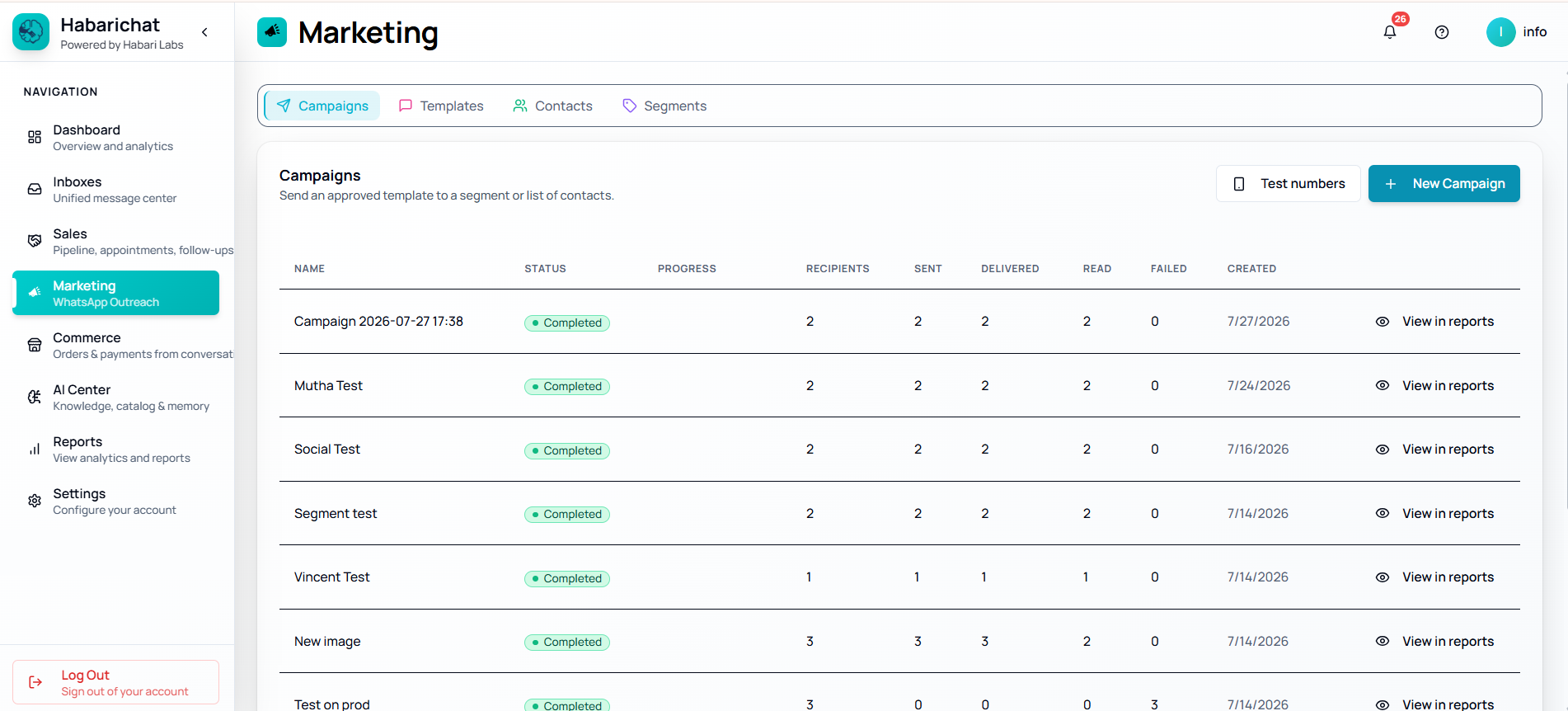
Broadcast an offer, a restock, a reminder, or an event to your whole contact list from the same number that just went live. Replies come back into your normal inbox as real conversations, not into a dead-end blast tool.
- Bring in your contacts. Upload a CSV, add them one by one, or pull them from people who have already messaged you. Start here: Add contacts.
- Get a template approved. Meta requires pre-approved wording for any message you send first. HabariChat builds these for you so they pass review. See WhatsApp message templates.
- Build and send the campaign. A four-step wizard takes you from naming it to launching it, with a live preview of the exact message. Full walkthrough: Create & send a WhatsApp campaign.
Sell from a catalog: product management
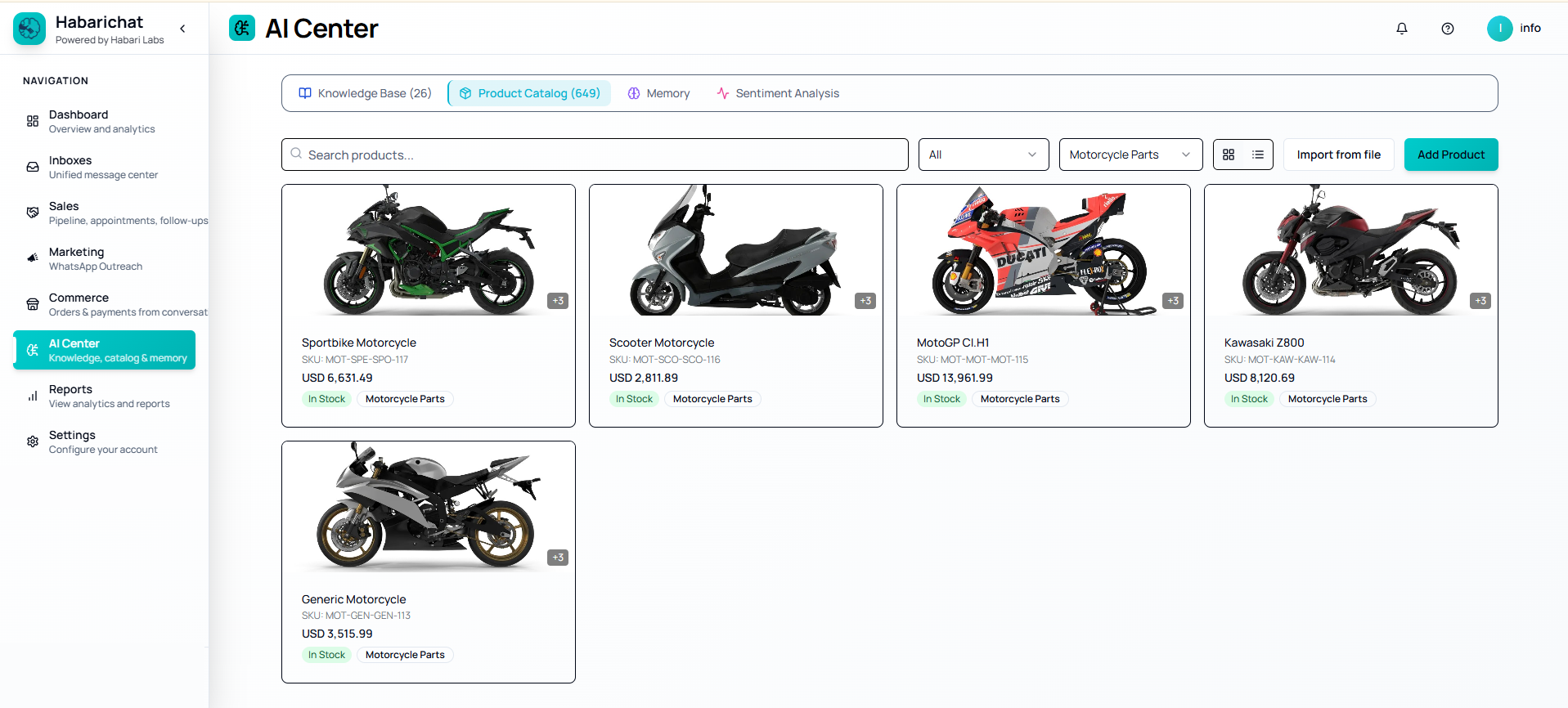
If you sell physical products, load them into your catalog and the AI stops describing things in paragraphs and starts sending proper product cards, with the photo, the price, and the item the customer actually asked about. Customers can ask by name, by description, or by sending a photo of what they want.
You will find it in the same place you trained the AI: AI Center → Product Catalog.
- Add your products with Add Product. Name, price, photo. Only the name is required to save, and the AI writes the description and makes the image searchable for you.
- Load in bulk if you have a list. Use Import from file to bring in a spreadsheet of your stock rather than typing items one at a time, and connect a WooCommerce store to keep products in step.
- Let it sell. The catalog serves every channel at once, so the same products reach WhatsApp, Instagram, Facebook, Telegram, and your website chat with nothing extra to set up. The AI drafts the order and you approve it.
What to expect in the first week
Your first few days are for watching, not tuning. Open the inbox once a day and read what the AI said. Two things usually surface, and both are easy to fix:
- Questions it fumbled. Almost always a gap in your documents rather than a fault in the AI. Upload the missing information and the gap closes.
- Questions you never knew customers asked. These are the valuable ones. Your What Customers Ask report collects them, and they often point at a product page or a policy worth changing.
Once conversations are flowing, add your team so replies are not all landing on one person, and check Reports to see what the assistant is actually handling for you.
Common questions
No, and this is the whole point of Coexistence. The WhatsApp Business app keeps working exactly as it does today. Whoever holds the phone carries on replying from it, while the AI and your campaigns run from HabariChat on the same number. Both sides see the same conversation.
Use the one on your posters. That is what Coexistence is for. Your customers keep messaging the number they already know, nothing gets reprinted, and no one has to be told to save a new contact.
About 30 minutes of your attention. Signing up takes two minutes and connecting WhatsApp roughly ten. The rest is gathering and uploading your documents, and large files can keep processing in the background for up to an hour while you carry on with something else.
No. Every step here is clicking through a dashboard and scanning one QR code. The only step that touches code is the website chat widget, which is a copy and paste of one snippet, and it is optional.
Use a laptop or desktop for the setup, and keep your phone next to you. The QR code appears on the computer screen and you scan it with the phone that holds the WhatsApp Business number, so you need both in the same place.
Your work stays where it is. The connected number, your uploaded documents, your contacts and your catalog all remain on the account, so choosing a plan simply switches the service back on. No card is needed to start the trial, so nothing is charged automatically.