Connect a Facebook Page to HabariChat
Connecting your Facebook Page brings every Messenger conversation into your unified inbox, where the AI can reply instantly and your team can step in whenever they need to.
Connect your Facebook Page
The connection uses Facebook's secure login. You authorise HabariChat once, pick the Page you want, and grant Messenger permissions, no code and no copying of access tokens by hand.
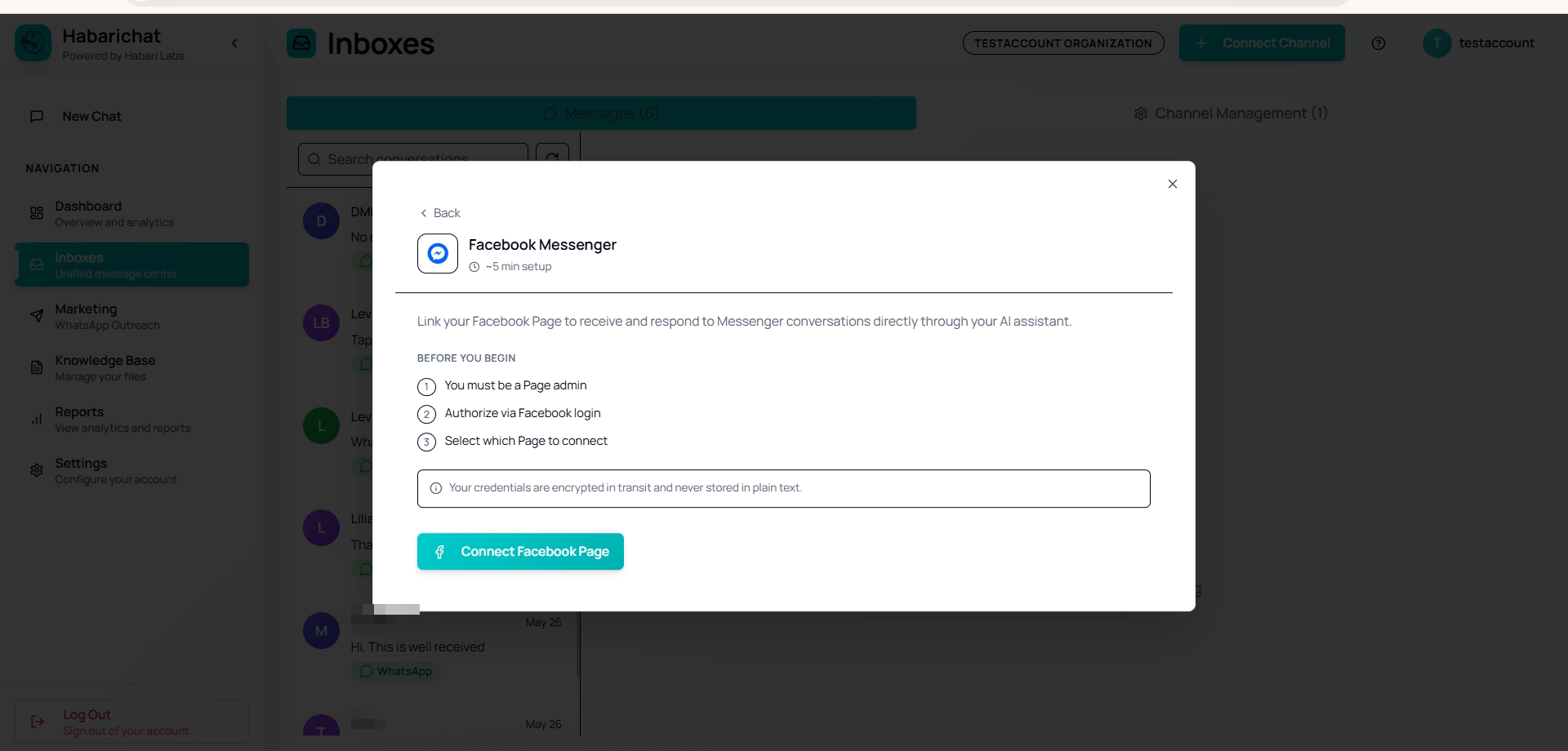
- A Facebook account with admin access to the Page.
- The Page must be published and active.
- You must be logged into HabariChat.
Steps
- Go to Settings → Channels, click Connect Channel and select Facebook Messenger.
- Click Connect Facebook Page to start Facebook login.
- Log in, select your Page, and grant Messenger permissions.
- HabariChat saves your Page details and the inbox becomes active.
- Send a test message to your Page from another account and confirm it lands in your inbox.
Troubleshooting
| Issue | What to do |
|---|---|
| "Authentication Required" screen | Log into HabariChat first, then retry. |
| "Failed to connect to Facebook" | Confirm you have admin rights on the Page. |
| Page not listed during login | Check that the Page is published and active. |
| Messages not appearing | Re-grant Messenger permissions, then send a fresh test message and refresh the Inboxes page. |
Common questions
Yes. You must log in with a Facebook account that has admin access to the Page, and the Page must be published and active. Editor or moderator roles are not enough to authorise the connection.
No. HabariChat only reads and replies to Messenger conversations on the Page. Your posts, comments, and ad campaigns are unaffected and continue to be managed in Meta's tools as usual.
Check that the Page is published and active, and that you logged in with the Facebook account that is an admin of it. If you have several Pages, make sure you grant access to the correct one when Facebook asks which Pages to share.