Connect email (SMTP/IMAP) to HabariChat
Connecting email lets HabariChat send (SMTP) and receive (IMAP) messages from your mailbox, so email conversations sit alongside your chat channels in one inbox.
Connect your mailbox
HabariChat works with any email account that supports SMTP and IMAP, Gmail, Outlook, Yahoo, or your own custom domain. You enable access with your provider, then enter the outgoing and incoming server details on the connect form.
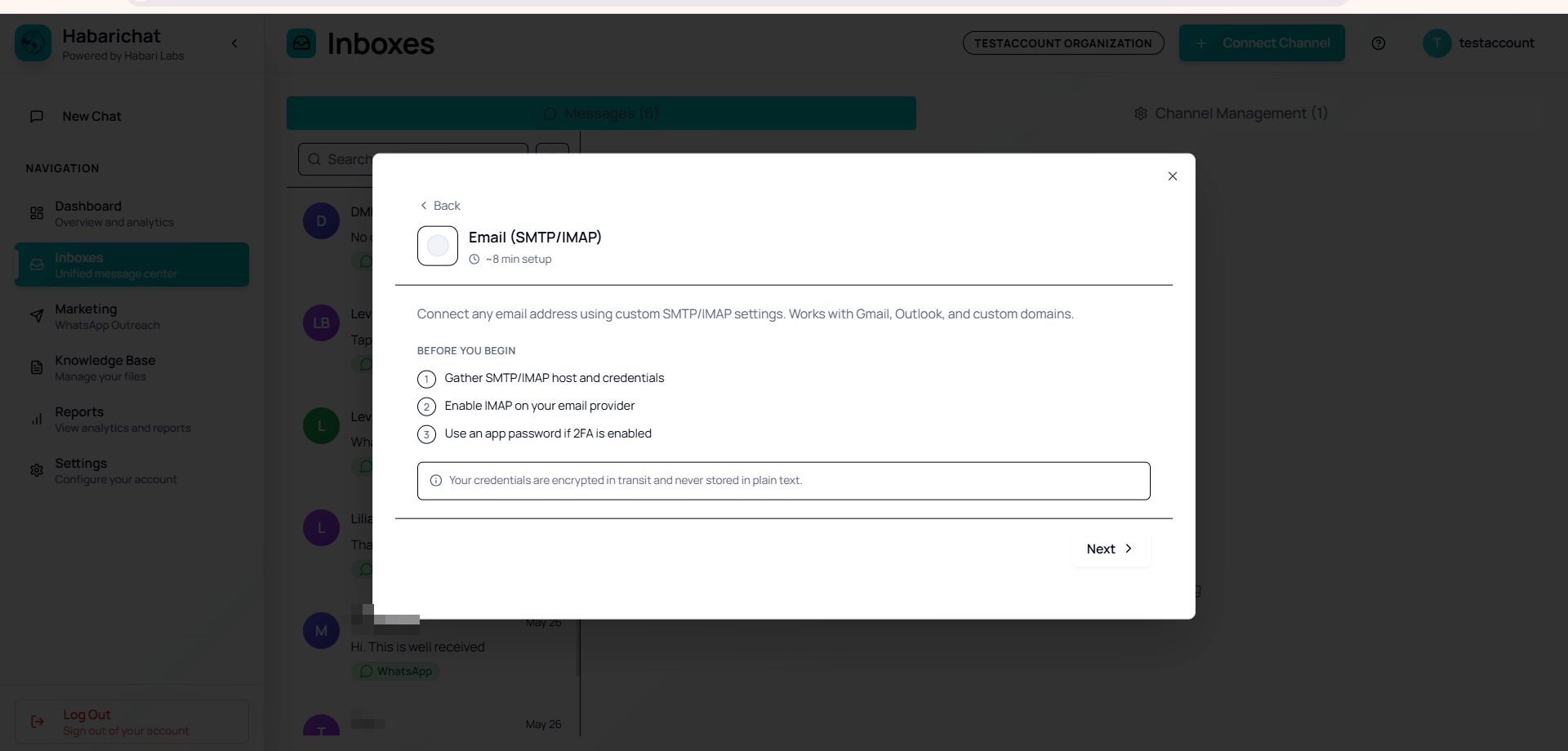
- An email account with SMTP/IMAP access enabled.
- Your server details (host and port) for both SMTP and IMAP.
- An app password if two-factor authentication is turned on.
Steps
- Enable SMTP/IMAP with your provider:
- Gmail: turn on IMAP under Settings, and generate an app password if you use two-factor.
- Outlook: enable IMAP under Mail sync settings.
- Yahoo: generate an app password under account security.
- Go to Settings → Channels, click Connect Channel and select Email (SMTP/IMAP).
- Fill in the SMTP (outgoing) tab: server, port, email, password, and TLS/SSL.
- Fill in the IMAP (incoming) tab: server, port, email, password, and SSL.
- Click Connect. HabariChat verifies the credentials and creates the inbox.
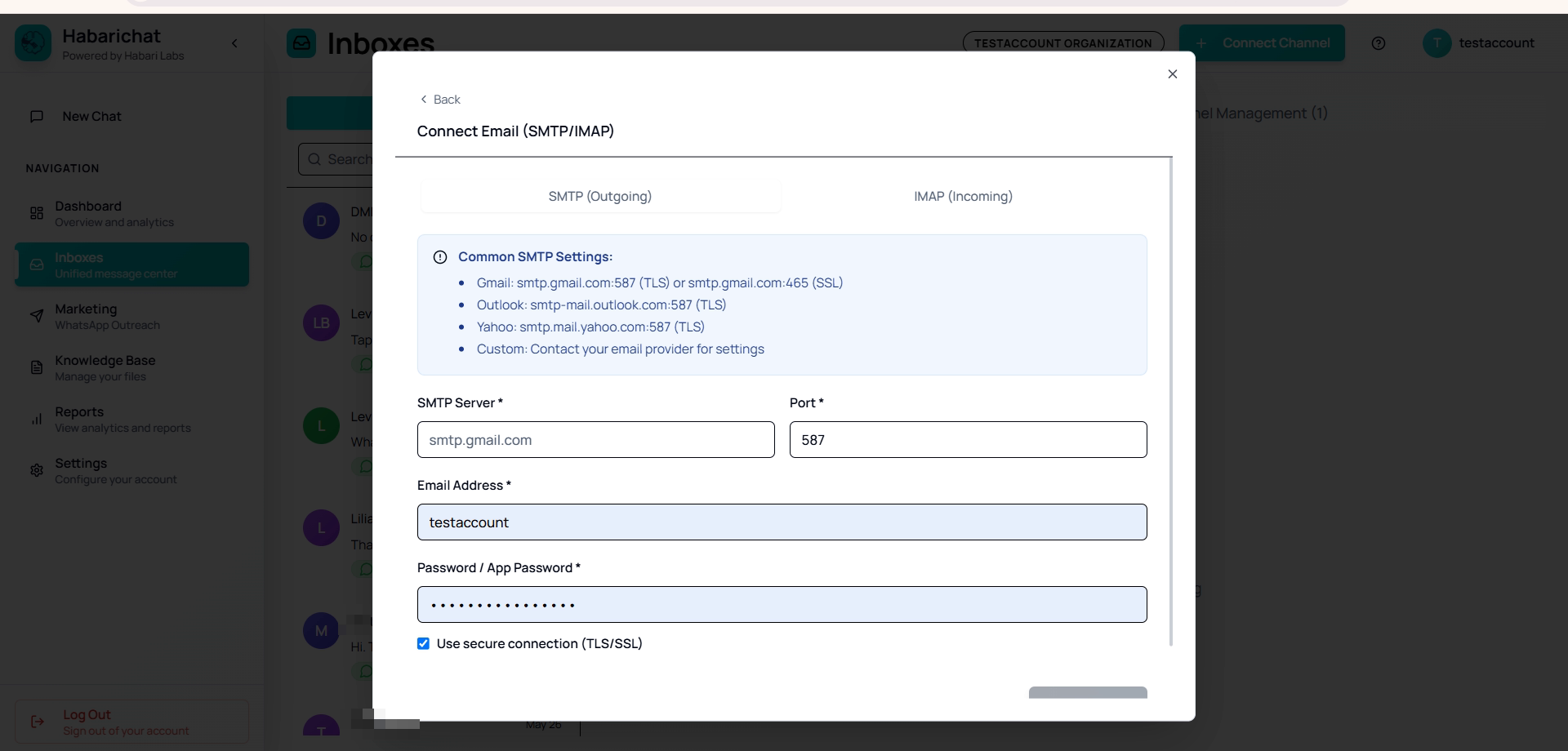
Common server settings
| Provider | SMTP (outgoing) | IMAP (incoming) |
|---|---|---|
| Gmail | smtp.gmail.com, port 587 (TLS) or 465 (SSL) | imap.gmail.com, port 993 (SSL) |
| Outlook | smtp-mail.outlook.com, port 587 (TLS) | outlook.office365.com, port 993 (SSL) |
| Yahoo | smtp.mail.yahoo.com, port 587 (TLS) | imap.mail.yahoo.com, port 993 (SSL) |
Troubleshooting
| Issue | What to do |
|---|---|
| Authentication failed | Use an app password if two-factor is on. |
| Connection refused | Check the server hostname and port. |
| SSL/TLS error | Toggle the secure-connection checkbox. |
| Gmail "less secure app" error | Use an app password instead of your account password. |
| IMAP not working | Confirm IMAP is enabled with your provider. |
Common questions
Any provider that supports SMTP and IMAP works, including Gmail, Outlook, Yahoo, and custom domain mailboxes. You enter the outgoing (SMTP) and incoming (IMAP) server details on the connect form.
If two-factor authentication is turned on for your mailbox, yes. Generate an app password with your provider and use it instead of your normal account password. For Gmail this is at myaccount.google.com/apppasswords.
For Gmail use smtp.gmail.com on port 587 (TLS) or 465 (SSL) for outgoing, and imap.gmail.com on port 993 (SSL) for incoming. Make sure IMAP is enabled in Gmail settings first.