Marketing reports
Reports for outbound WhatsApp Broadcast Marketing: campaigns, your contact list, message templates, and what it all costs.
Marketing reports
Campaigns
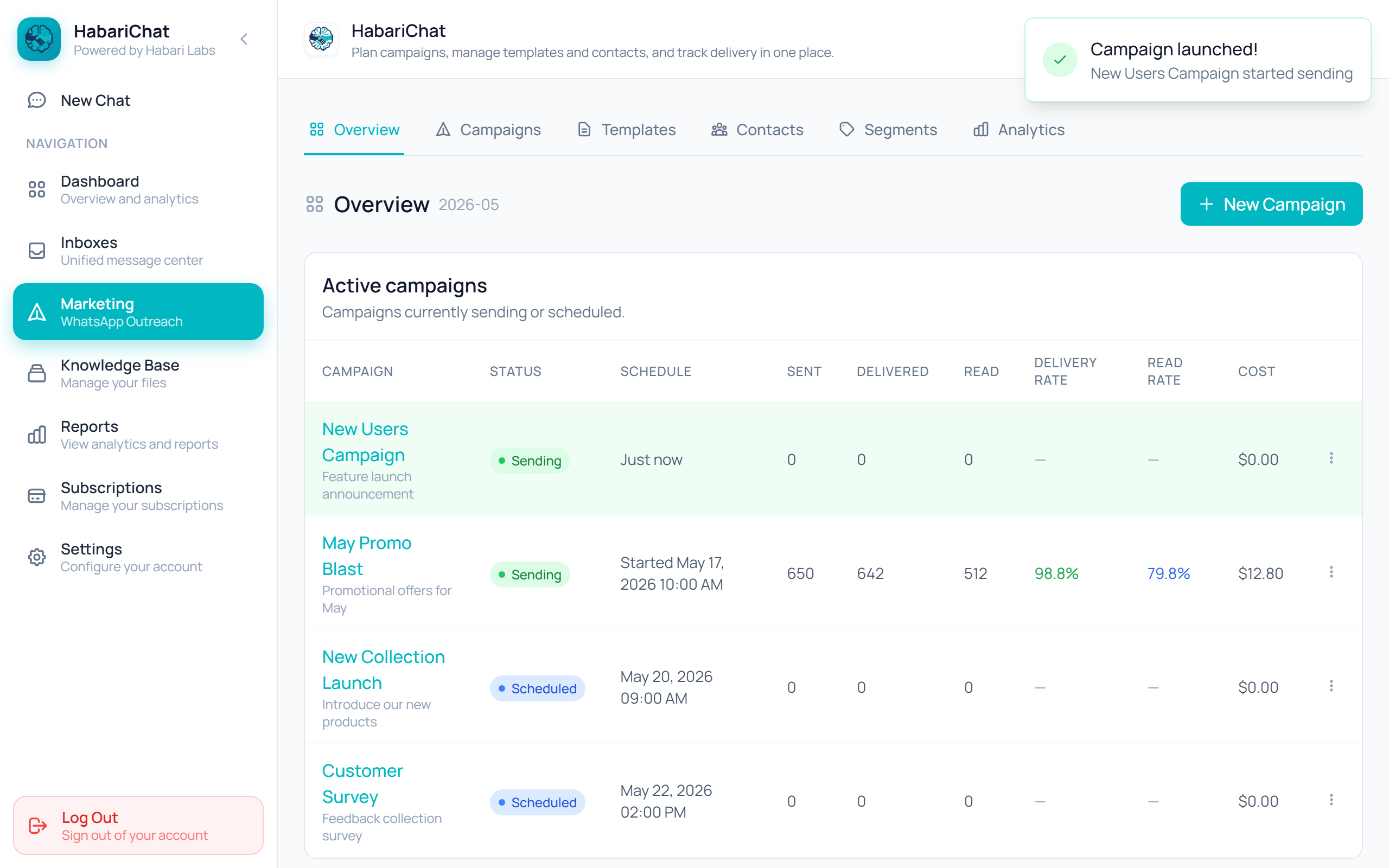
What you see. A list of campaigns with status, recipients, sent / delivered / read counts, delivery %, read %, and the template used. Click a campaign for a delivery funnel (Queued → Sent → Delivered → Read), average time to deliver and time to read, cost per recipient, failure reasons, and a per-recipient list.
How to use it. Measure whether broadcasts actually land and get read. A low delivery % points to bad numbers or opt-outs; a low read % points to weak messaging or bad timing. The per-recipient view and failure reasons help you clean your list.
Contacts & Segments
What you see. List health, opt-in / opt-out / unknown rates, opt-outs in the last 30 days, and a never-messaged count, plus your segments (member and opt-in counts), a source breakdown (manual / CSV / inbox / API), and a paginated, segment-filterable contact directory.
How to use it. Keep your audience compliant and reachable. A climbing opt-out rate is a warning that you're messaging too often or with weak content. Segments show who you can target and how engaged each group is.
Message Templates
What you see. Your WhatsApp templates by status (Approved / Pending / Rejected / Paused), category, and language, plus each template's rejection reason (if any), how many campaigns used it, and when it last synced.
How to use it. You can only broadcast with Approved templates, so this is your readiness check. Rejected templates show the reason so you can fix and resubmit; the campaign-usage count shows which templates pull their weight.
Messaging Costs
What you see. Sent and delivered this month, cost this month, and cost per delivered message, plus a 12-month table split by message category (marketing / utility / authentication / service).
How to use it. Track and forecast your WhatsApp spend. The category split matters because WhatsApp prices categories differently, watch the marketing share, and use cost-per-delivered as your efficiency metric.
Common questions
Use the Campaigns report. It shows sent, delivered and read counts, delivery % (delivered divided by sent) and read % (read divided by delivered), plus a per-campaign delivery funnel, time to deliver, time to read, cost per recipient, failure reasons and a per-recipient list.
If you haven't set up WhatsApp Broadcast Marketing yet, these reports are simply empty rather than showing an error. Once you import contacts and send campaigns, the data appears.
The Campaigns report follows the date range, but Contacts & Segments, Message Templates and Messaging Costs always show current data and ignore the date filter, because they describe a current state.